
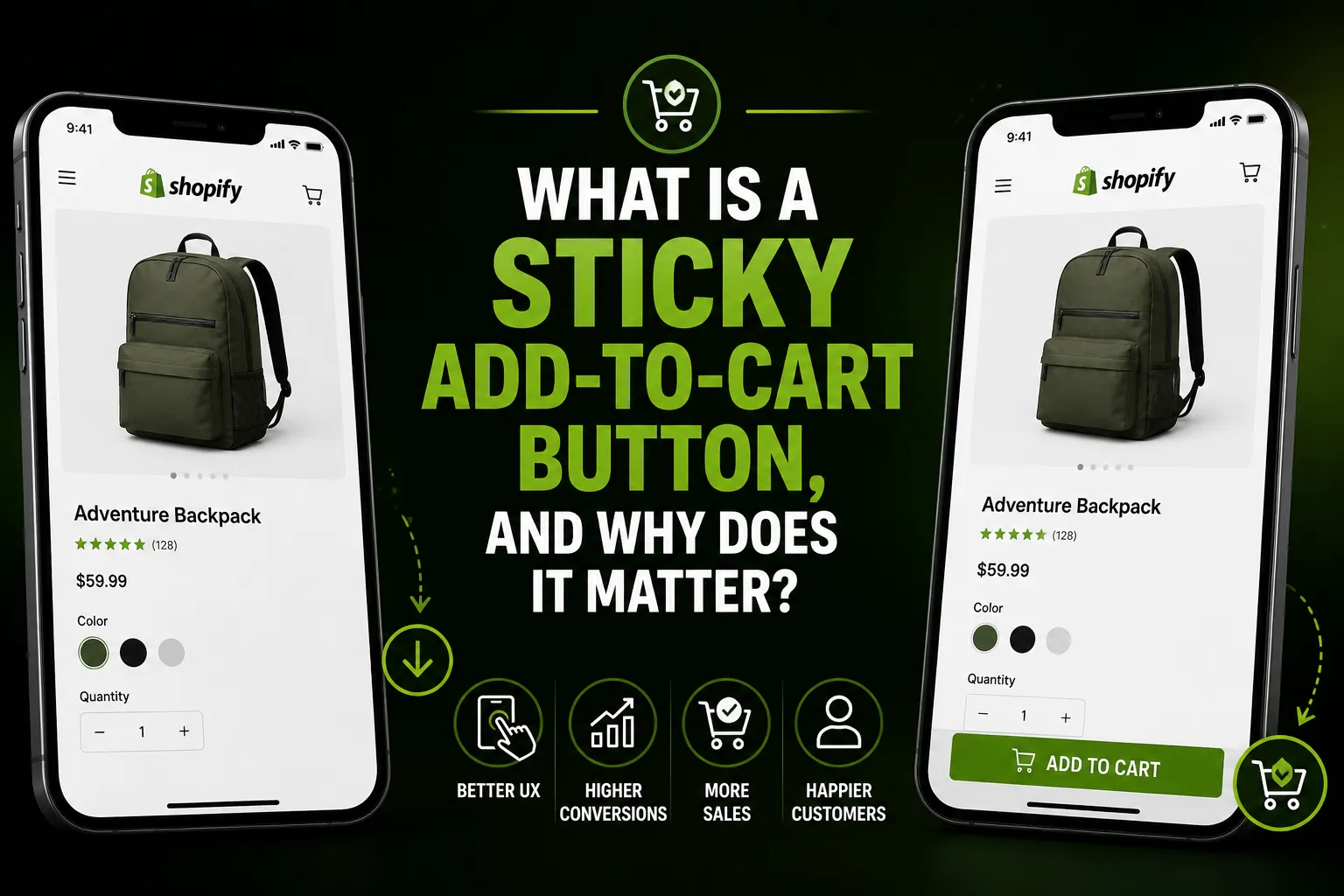
How to Add a Sticky Add-to-Cart Button to Shopify (No-Code & Manual Methods)
When a shopper scrolls through a long product description, the add-to-cart button can disappear off the top of the screen. A sticky add-to-cart button fixes that — it stays visible the whole time, pinned to the top or bottom of the page, so buying is never more than one tap away. This guide walks through both ways to add one to your Shopify store: editing the theme code yourself, and using a dedicated app.
What Is a Sticky Add-to-Cart Button, and Why Does It Matter?
A sticky add-to-cart button is a bar or button that remains on screen as the customer scrolls — it doesn’t get buried by a long product description or image gallery. Because it’s always visible, customers don’t have to hunt for the buy button or scroll back up to find it.
This matters most in two situations: mobile product pages (where the original ATC button often lands below the fold) and pages with detailed descriptions, size guides, or lots of images. If you’d like a fuller explanation of how the feature works and where it helps most, see What Is a Sticky Add-to-Cart Bar?.
Method 1: Editing Your Shopify Theme Code Manually
The manual route means adding CSS and (usually) some JavaScript to your theme files. Here’s what’s involved.
What you’ll need to edit
In your Shopify admin, go to Online Store → Themes → Edit code. The relevant files are typically:
- sections/product-template.liquid (or main-product.liquid in newer themes like Dawn) — where you add the sticky bar HTML
- assets/ — where you add a new CSS file for the sticky styles
- layout/theme.liquid — where you link the CSS file
The basic approach
You create a new <div> that wraps a duplicate of your add-to-cart button and set it to position: fixed (or position: sticky) in CSS. A small JavaScript snippet watches the scroll position: once the original button scrolls out of view, the fixed bar becomes visible; when the original button is back on screen, it hides again. You also need to make sure the bar sits above other page elements using z-index.
The real risks of doing it manually
Editing theme files works, but comes with trade-offs that are worth understanding before you start:
Theme updates will overwrite your changes. Shopify themes update frequently, and any update to main-product.liquid or theme.liquid can wipe out the custom code you added. You’d need to re-apply it every time.
No mobile-specific tuning. A fixed bar that looks fine on a 1440px desktop can overlap tap targets on a 375px phone screen. Getting it right on both takes extra CSS work and thorough testing across devices.
Variant selection doesn’t carry over by default. If your product has variants (size, colour, etc.), a basic sticky button won’t communicate which variant the customer has selected unless you write additional JavaScript to keep them in sync.
No analytics. The manual method gives you a button — it doesn’t tell you how often it’s being clicked or whether it’s contributing to sales. You’d need to set up custom event tracking separately.
You need to be comfortable with code. A mistake in theme.liquid can break your entire storefront. Always work on a duplicated theme, not your live one.
If you’re a developer or a merchant who’s comfortable in Liquid and CSS, this is a viable path. For everyone else, the app route below is faster, safer, and more capable.
Method 2: Using a Shopify App (No Code Required)
A purpose-built app handles the sticky bar through Shopify’s theme app extension system — meaning it adds itself to your theme without touching your theme files directly. You configure everything in the app’s settings panel.
How it works
After installing from the Shopify App Store, the app injects a sticky bar via a theme extension block. You enable it in your theme editor (Online Store → Customize → App embeds or a dedicated section), adjust the colours, button labels, and layout to match your brand, and you’re done. No code editor, no risk of breaking your theme.
If your theme updates, the app extension updates with it. The sticky bar persists.
What a good app adds on top of the basic bar
- Variant sync — the sticky bar shows the variant the customer has selected and prevents adding to cart without one if variants are required
- Quantity selector — customers can change the quantity right in the sticky bar
- Buy Now button — lets customers skip the cart and go straight to checkout
- Mobile-first design — the bar is tested and sized for small screens out of the box
- Built-in analytics — you can see click counts and how often the sticky bar drives add-to-cart events, without needing a separate analytics setup
CartLift as an example
Sticky Add To Cart – CartLift is a focused Shopify app that does exactly this. It installs via a theme extension (no Liquid editing), includes variant selection, a quantity selector, and a Buy Now option, and lets you customise the bar’s colours, position, and button labels to match your theme. There’s a built-in analytics dashboard so you can track add-to-cart clicks and see the impact over time.
The plan is $8/month with a 7-day free trial — so you can test it on your actual store before paying anything.
[Screenshot/video placeholder: CartLift sticky bar visible on a mobile product page] Filename: cartlift-sticky-add-to-cart-mobile-demo.png Alt: CartLift sticky add-to-cart bar displayed at the bottom of a Shopify product page on a mobile device
Manual vs. App: Which Should You Choose?
| Manual (code) | App (CartLift) | |
|---|---|---|
| Setup time | Several hours | 5–10 minutes |
| Coding required | Yes (Liquid + CSS + JS) | No |
| Survives theme updates | No — needs reapplying | Yes |
| Mobile-optimized | Only if you build it | Built-in |
| Variant sync | Only if you code it | Built-in |
| Analytics | Only if you add tracking | Built-in |
| Cost | Free (your time) | $8/month |
If you’re a developer building for a client who wants full control, the manual approach is reasonable — but budget time for upkeep. If you’re a merchant running your own store and want to test a sticky bar quickly, an app is the more practical choice.
For more on the mobile side of this (where sticky bars arguably help most), see Why Mobile Shoppers Abandon Shopify Product Pages.
For a broader look at all the levers that affect your add-to-cart rate, see How to Boost Your Shopify Add-to-Cart Rate.
Frequently Asked Questions
Does adding a sticky add-to-cart button require editing my Shopify theme? Not if you use a theme app extension. Apps like CartLift install through Shopify’s app extension system, which adds the sticky bar without modifying your theme files. If you go the manual route, yes — you’ll need to edit your Liquid, CSS, and possibly JavaScript.
Will a sticky add-to-cart bar work on all Shopify themes? Most modern Shopify themes (including Dawn and other Online Store 2.0 themes) support theme app extensions. If you’re on an older theme, you may need to check compatibility, or use the manual code approach instead. A reputable app will list compatible themes in its documentation.
Can the sticky bar show product variants (size, colour, etc.)? With a well-built app, yes — the variant selector in the sticky bar stays in sync with the one on the page, so customers can see and change their selection without scrolling up. A basic manual implementation won’t do this without extra JavaScript.
Does a sticky add-to-cart button slow down my store? A theme app extension adds a small amount of JavaScript and CSS. Done well, the impact on page speed is minimal. Look for apps that load their code asynchronously so it doesn’t block the initial page render.
What’s the difference between a sticky add-to-cart bar and a cart drawer? A sticky add-to-cart bar keeps the buy button visible as you scroll — it’s on the product page. A cart drawer is a slide-out panel that shows what’s already in your cart. They serve different moments in the shopping journey and aren’t mutually exclusive.
How do I know if the sticky bar is actually helping my store? The most straightforward approach is to look at your add-to-cart rate before and after installing it, comparing similar traffic periods. An app with built-in analytics (like CartLift) makes this easier by showing you how many add-to-cart events are coming through the sticky bar specifically.
 Sharfaraz Ahmed


